If you’re comparing a 4K QLED TV in 2026, you’ll see “HDMI 2.1” everywhere. Some buyers treat it like a must-have label, others ignore it completely. The truth sits in the middle: HDMI 2.1 matters a lot—if you game, if you use a soundbar/AV receiver, or if you want a TV that won’t feel outdated the moment you upgrade your devices.
This guide breaks HDMI 2.1 down into plain, practical decisions. You’ll learn what features actually change your experience, what to prioritize, and how to avoid the most common setup mistakes that create issues like “No Signal,” missing 120Hz, or audio delay.
1) What HDMI 2.1 really means (and what it doesn’t)
HDMI 2.1 is a standard that supports newer features and higher bandwidth than older HDMI versions. But here’s the catch:
A TV can advertise “HDMI 2.1” and still vary by which features it supports and which ports support them.
For most people, the key isn’t the label—it’s whether the TV supports the specific HDMI 2.1 features that match your use.
So instead of asking “Does it have HDMI 2.1?” ask:
Does it support VRR and ALLM for gaming?
Does it support eARC for soundbars/receivers?
Can it handle 4K at higher frame rates reliably?
2) The 4 HDMI 2.1 features you should actually care about
A) 4K at higher frame rates (for gaming, not movies)
The most famous HDMI 2.1 benefit is supporting higher frame rates at 4K resolution—important for:
If you never game, this feature won’t change your Netflix experience. Streaming movies are typically far below 120fps. But if gaming is part of your household usage, this is a major upgrade from older TV inputs.
B) VRR (Variable Refresh Rate)
VRR helps your TV match the game’s frame rate in real time. It can reduce:
Who benefits most:
What VRR doesn’t do:
It won’t fix a game that is badly optimized.
It won’t turn a 30fps game into a 60fps game.
It may need correct settings on both the TV and the console/PC to work properly.
C) ALLM (Auto Low Latency Mode)
ALLM is the “make my TV feel fast” feature.
When ALLM is enabled, the TV automatically switches to a low-latency mode (often Game Mode) when it detects a compatible gaming source. This matters because many TVs apply extra processing by default, which can add noticeable input lag.
Who benefits most:
Why it matters:
ALLM reduces friction. Your TV behaves correctly without you hunting through menus every time you switch from streaming to gaming.
D) eARC (Enhanced Audio Return Channel)
eARC is one of the most underrated HDMI 2.1 features—especially for buyers who care about sound.
It improves how audio is sent from the TV to a soundbar or AV receiver. In real life, eARC helps with:
cleaner audio passthrough
better compatibility with modern sound formats
fewer “why is there no sound?” moments when switching apps/devices
If you plan to use:
a soundbar
a home theater receiver
external speakers
…then eARC is often the feature that makes your setup feel stable and “premium” long term.
3) How to choose the right HDMI 2.1 setup (simple scenarios)
Scenario 1: “I mostly stream, but I want better sound later”
Prioritize:
eARC support
stable OS audio settings
reliable HDMI handshake
What to look for:
Scenario 2: “I’m a console gamer (PS5/Xbox)”
Prioritize:
What to look for:
at least one HDMI 2.1 port that supports the full gaming feature set
a straightforward Game Mode menu
stable switching (no random black screens)
Scenario 3: “I game on PC and care about smoothness”
Prioritize:
What to look for:
4) Setup checklist (to actually get HDMI 2.1 benefits)
This is the part that prevents 80% of “HDMI 2.1 isn’t working” complaints.
Step 1: Use the correct HDMI port
Many TVs do not enable every advanced feature on every port. Use the port labeled for gaming features or eARC (depending on your priority).
Step 2: Enable the TV’s “enhanced” HDMI mode
Some TVs require you to enable a higher-bandwidth mode for a port before advanced features work correctly. If you skip this, you may be stuck at 60Hz or lose HDR.
Step 3: Turn on Game Mode (or ALLM)
If you game and controls feel “soft” or delayed, this is usually why. Game Mode reduces processing and helps input lag.
Step 4: Enable VRR on both the TV and the console/PC
VRR often requires:
Step 5: If using a soundbar/receiver, set up eARC cleanly
Connect the soundbar/AVR to the TV’s eARC port
Enable eARC in TV audio settings
Choose the correct audio output mode (TV menus vary)
Test lip sync using a familiar scene (dialogue close-ups)
5) Common HDMI 2.1 problems—and what usually causes them
Problem: “No Signal” or random black screen
Common causes:
wrong port
enhanced HDMI mode not enabled
cable quality/length issues
device output settings mismatch
Fast fix order:
power cycle TV + device
change HDMI port
enable enhanced HDMI
swap cable
reduce output complexity (temporarily lower refresh, disable VRR to test)
Problem: “My console won’t show 120Hz”
Common causes:
the game itself doesn’t support 120fps
console set to quality mode instead of performance mode
TV port not in enhanced mode
using a port that doesn’t support high-frame-rate input
Problem: “Soundbar works sometimes, then stops”
Common causes:
Fast fix:
6) Buying advice: what to check before you commit
When you’re comparing 4K QLED TVs, use this quick checklist:
How many HDMI ports are available?
Which port supports eARC?
Which ports support the full gaming feature set (VRR/ALLM/high refresh)?
Is the HDMI mode easy to switch and stable?
Does the TV keep settings per input (so console and streaming box don’t fight each other)?
A TV that handles HDMI 2.1 well often feels “effortless” day to day. A TV that handles it poorly creates constant troubleshooting.
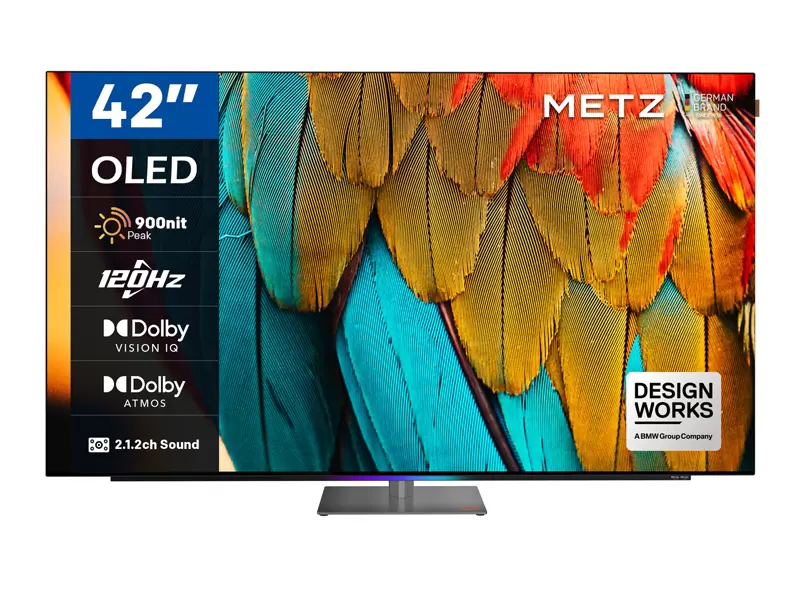
7) Where a modern 4K QLED TV like MQE8000 fits
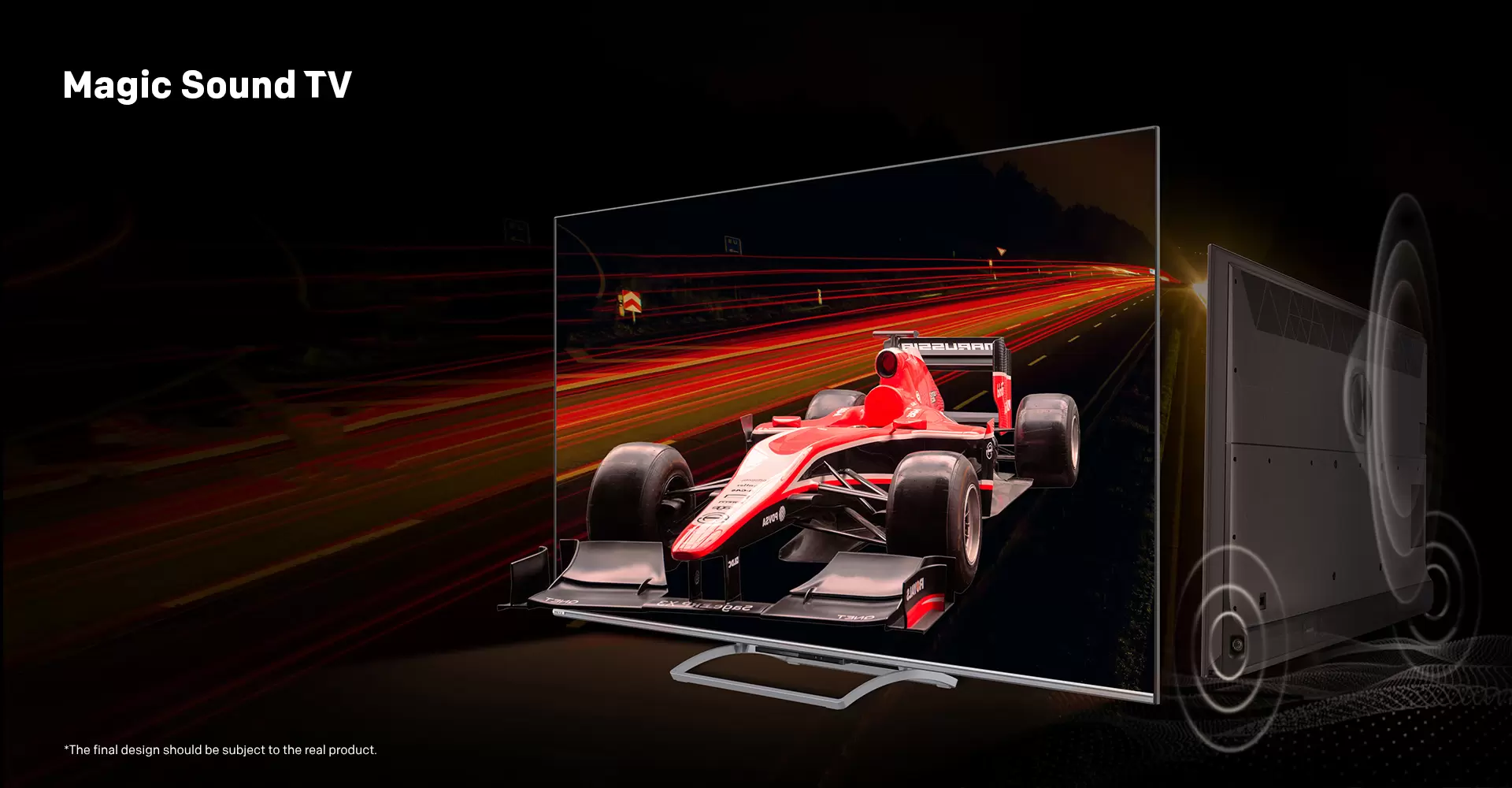
4K QLED Magic Sound TV with HDMI 2.1
If you’re building a “do-it-all” living room setup—streaming, sports, gaming, and possibly a soundbar—then HDMI 2.1 is one of the most practical long-term specs to prioritize. A model positioned as a gaming-ready 4K QLED TV (high refresh + HDMI 2.1 + modern smart platform) is designed for exactly this mixed-use reality, which is why a product like the METZ MQE8000-style lineup can be a natural internal link target inside your HDMI 2.1 cluster content.
Source: