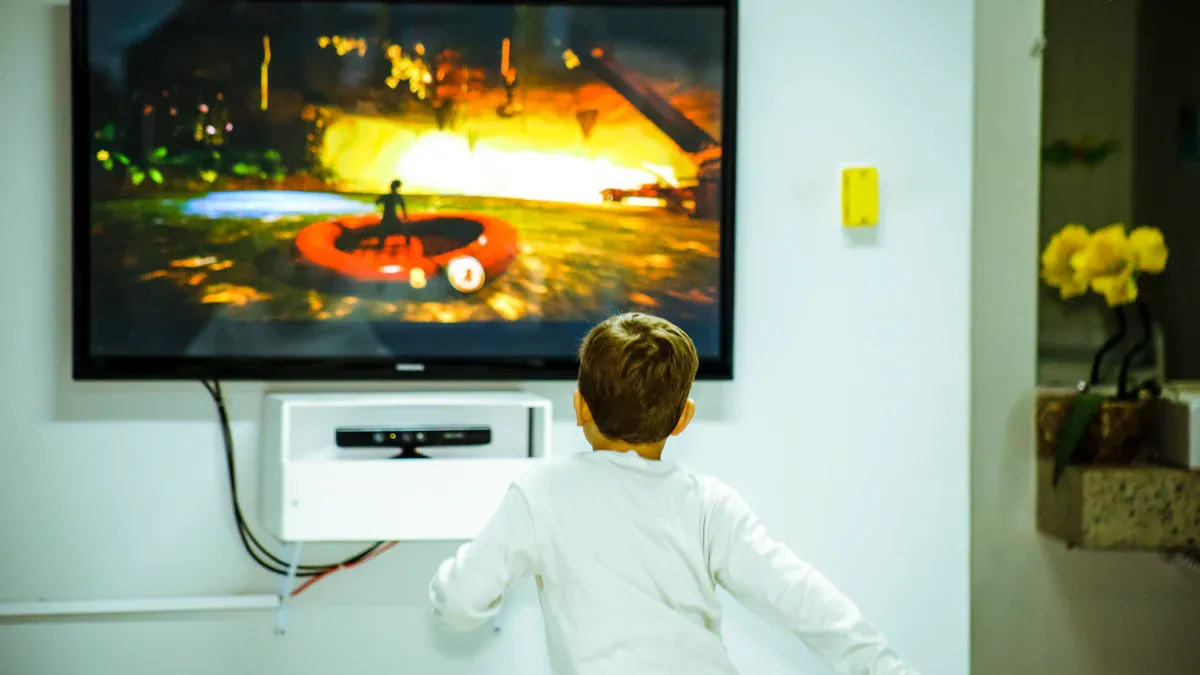
The Xbox Series X is one of the easiest consoles to pair with a modern 4K QLED TV—when everything is set up correctly. But “correctly” matters. If you’ve ever seen washed-out HDR, missing 120Hz, VRR flicker, or audio delay through a soundbar, you already know the experience can swing from “wow” to “why is this happening?”
4K QLED TV with HDMI 2.1 gaming features
This guide gives you a clean, practical setup for:
It’s written for real living-room setups, not showroom demos.
1) Before you change settings: confirm the basics
Use the right HDMI port on the TV
Many TVs have multiple HDMI ports, but not every port supports the full gaming feature set. If your TV has a port labeled for gaming/high refresh/eARC, start there.
If you’re also using a soundbar via eARC, plan your cable layout early:
Xbox goes to the TV’s gaming-capable HDMI port
Soundbar/AVR goes to the TV’s eARC HDMI port
(These may or may not be the same port, depending on the TV.)
Use a reliable HDMI cable
If you experience random black screens, “no signal,” or the TV dropping to 60Hz, treat the cable as a suspect first. Many cables handle 4K60 fine but fail when you push 4K/120 + VRR.
2) TV-side settings: the most common hidden blocker
To get 4K/120 working reliably, most TVs require enabling a high-bandwidth mode for the HDMI port (the names vary):
Enhanced HDMI
HDMI Enhanced Format
Input Signal Plus
High Bandwidth Mode
HDMI 2.1 Mode
What to do:
Go to TV settings
Find HDMI/Input settings
Enable the enhanced mode for the port your Xbox uses
Restart the TV if prompted
If you skip this, the Xbox often falls back to 4K60 even if your panel supports more.
3) Xbox Series X: best display settings (the clean setup)
On Xbox Series X, go to:
Settings → General → TV & display options
Step A: Resolution and refresh rate
If 120Hz is missing, jump to the troubleshooting section below.
Step B: Video modes
Go to Video modes and toggle based on your setup:
✅ Allow 4K (ON)
✅ Allow HDR10 (ON, if your TV supports HDR)
✅ Allow Dolby Vision (optional; some TVs handle it better than others depending on content)
✅ Allow variable refresh rate (VRR) (ON if your TV supports VRR)
✅ Auto low-latency mode (ALLM) (ON if supported)
Practical tip: If you run into flicker or blackouts, turn off VRR temporarily, confirm 4K/120 is stable, then re-enable VRR.
4) HDR setup: how to make it look correct (not washed-out)
HDR is where many people make the wrong assumption: “HDR ON = better.” Sometimes HDR looks worse simply because the settings aren’t calibrated.
Step A: Run Xbox HDR calibration
On Xbox, use the built-in HDR calibration tools:
Follow the on-screen steps carefully. This ensures the Xbox knows your TV’s tone mapping limits, which reduces blown highlights or crushed shadow detail.
Step B: Use the right TV picture mode
For gaming, most TVs have a Game Mode (or Game picture profile). Use it. It usually:
lowers input lag
reduces extra processing
keeps motion stable
If your Game Mode looks too dull, don’t immediately turn it off. Instead:
adjust brightness/backlight slightly
confirm HDR tone settings aren’t too aggressive
keep motion smoothing off for gaming (more on that below)
5) VRR: why it’s great—and why it sometimes flickers
VRR helps the TV match refresh rate to the console’s frame output, reducing tearing and stutter. It’s especially helpful in games where frame rate isn’t perfectly locked.
But VRR can sometimes introduce:
subtle brightness flicker in darker scenes
occasional instability when switching apps/games
rare “handshake” issues on certain setups
Best practice:
Turn VRR ON for most games
If you see flicker in a specific title, consider disabling VRR for that title (or switch the game to a stable frame mode)
Keep Game Mode on to avoid processing conflicts
6) Motion settings: what to turn off for gaming
A 4K QLED TV often includes motion enhancement features designed for sports and broadcast TV. These can add lag or create artifacts in gaming.
For gaming:
Turn motion smoothing OFF (or set to minimum)
Disable heavy “noise reduction” features (they can add delay and blur fine detail)
Keep “sharpness” moderate—too high creates halos
Remember: the Xbox output is already a clean digital signal. You don’t want the TV “fixing” what isn’t broken.
7) Audio setup: eARC, Atmos, and lip sync (the real-world pain points)
If you use TV speakers only, you can skip this section. But if you use a soundbar or AVR, it matters.
The ideal wiring
This lets the TV handle video switching while sending audio out cleanly.
Dolby Atmos on Xbox
If your sound system supports Atmos, you can enable it in Xbox audio settings. However, if you experience lip sync issues:
switch to a simpler audio output mode temporarily
confirm eARC is enabled on the TV
check if the soundbar has a lip-sync delay setting
Most “Atmos problems” are actually eARC setup problems.
8) Troubleshooting: fix the most common problems fast
Problem 1: 120Hz option is missing
Likely causes:
TV HDMI port not in enhanced mode
Xbox connected to the wrong HDMI port
cable instability
TV picture mode restricting features
Fix order:
Move Xbox to the TV’s gaming-capable HDMI port
Enable enhanced HDMI mode on that port
Swap HDMI cable
Restart TV and console (power cycle)
Re-check “TV & display options” on Xbox
Problem 2: You get black screens when enabling 4K/120 or VRR
Likely causes:
cable bandwidth issue
handshake instability
VRR compatibility quirks
Fix:
Problem 3: HDR looks dull or gray
Likely causes:
Fix:
Problem 4: Audio delay / lip sync
Likely causes:
Fix:
enable eARC and passthrough on TV
reduce TV audio enhancements
use soundbar lip sync adjustment
9) A “best practice” setup profile (simple, stable, good-looking)
If you want a stable baseline that works for most users:
TV
Xbox
This setup gives you a responsive feel with strong image clarity—without constant tweaking.
Source: