Most TVs look impressive out of the box—but not always in a good way. The default settings are usually designed to “pop” under bright store lighting: extra sharp edges, boosted colors, and motion smoothing that makes movies look like live soap operas.
Filmmaker Mode is the opposite approach. It’s a one-switch shortcut that strips away a lot of that extra processing so films and TV dramas look closer to how they were mastered. In other words: if you want a more “cinema-like” picture at home without learning 20 settings, this is often the simplest place to start.
1) What Filmmaker Mode actually changes
Filmmaker Mode isn’t a marketing “filter.” It’s a defined picture mode supported by the UHD Alliance initiative, with a clear intention: preserve the creative intent by reducing processing that can unintentionally alter the image.
In practical terms, Filmmaker Mode typically does the following:
Turns off motion smoothing / interpolation (the biggest “cinema” difference)
Reduces or disables edge sharpening (less “crispy outline” look)
Disables heavy noise reduction (so film grain isn’t smeared into wax)
Preserves source frame rate and aspect ratio (no stretching, no forced conversion)
Often targets a more standard white point (D65) for natural color balance
If you’ve ever said “my TV makes movies look weirdly smooth” or “faces look too sharpened,” Filmmaker Mode is built to fix exactly that.
2) The biggest win: goodbye “Soap Opera Effect”
The fastest way to understand Filmmaker Mode is to look at motion.
Many TVs add extra “in-between” frames to make motion appear smoother. It can be great for some sports, but for movies and scripted shows it often creates the dreaded Soap Opera Effect—everything looks like behind-the-scenes video instead of cinema.
Filmmaker Mode typically turns this off by default.
What you’ll notice:
Tradeoff: you may notice more judder in certain panning shots, because you’re now seeing the content closer to its original cadence. That’s normal—and it’s part of what the mode is trying to preserve.
3) The second win: natural detail instead of “fake sharpness”
Retail demo modes often crank sharpness up so the image looks detailed from 10 feet away under harsh store lighting. At home, that can create:
harsh outlines around faces
noisy textures in skin and hair
sparkling artifacts on grass or fabric
Filmmaker Mode typically reduces sharpening and other “edge enhancement.”
What you’ll notice:
This matters even more if you watch compressed streams (where sharpening can emphasize compression blocks).
4) The third win: film grain stays film grain
A lot of movies and prestige TV shows intentionally have film grain or a specific texture. Some TVs try to “clean” that texture away using noise reduction—then you get:
Filmmaker Mode typically disables or reduces noise reduction so the intended texture remains.
If you like a “clean” look you can always re-enable some noise reduction later—but Filmmaker Mode gives you a trustworthy baseline first.
5) Filmmaker Mode on Mini LED TVs: what changes (and what doesn’t)
On Mini LED TVs, the big picture strengths are:
Filmmaker Mode won’t magically change the hardware, but it can improve how natural the image looks by avoiding extra processing layered on top of that brightness and contrast.
Where it shines on Mini LED:
HDR movies where you want depth without artificial punch
Dark scenes where “dynamic contrast” tricks can crush shadow detail
Content with subtle color grading (skin tones, sunsets, low-light interiors)
Where it’s not the best default:
6) When to use Filmmaker Mode (and when not to)
Use it for:
Consider another mode for:
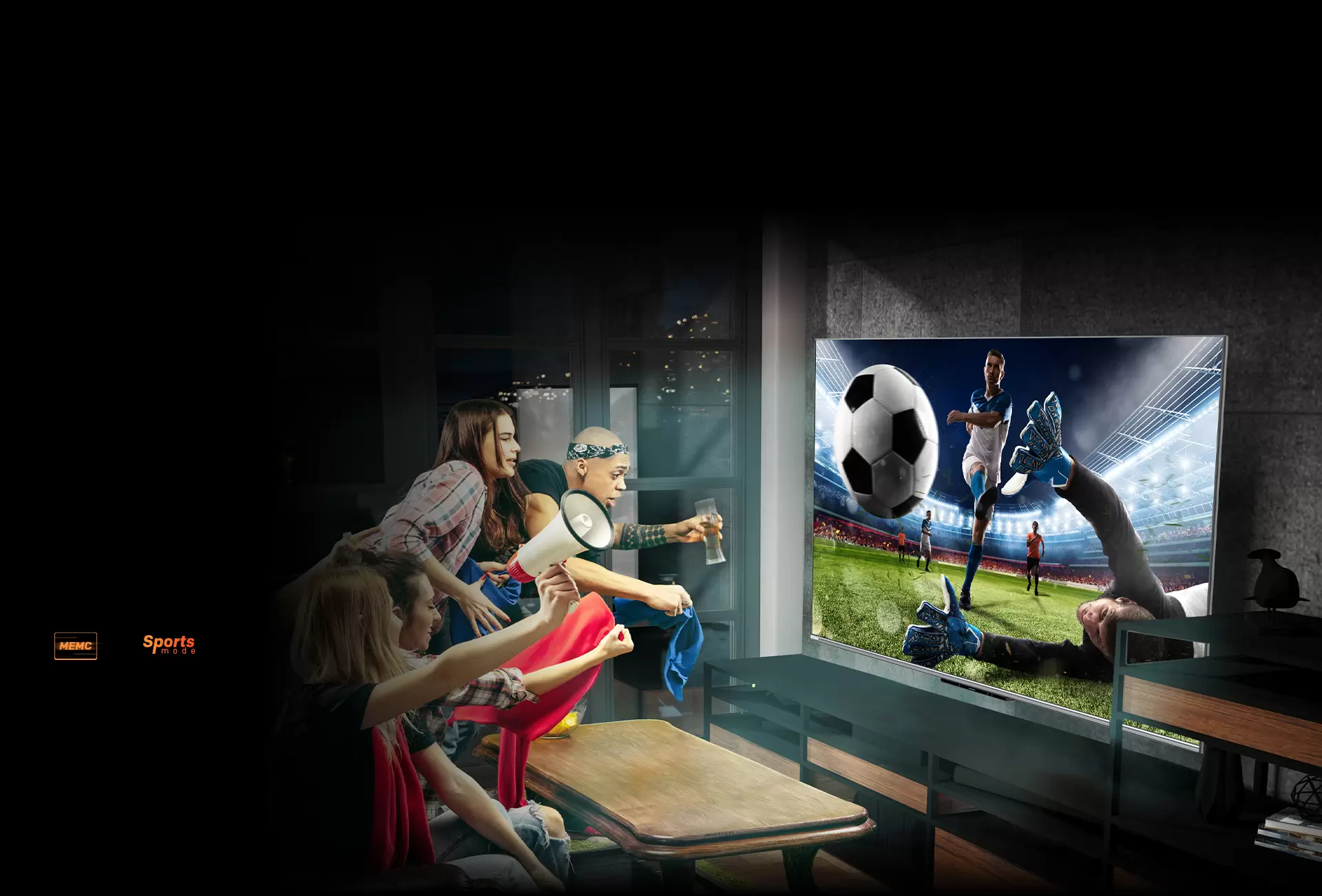
Live sports (motion preferences vary—some people like interpolation here)
News and daytime TV in a very bright room
Very low bitrate streams (a touch of noise reduction may help)
A good workflow is: Filmmaker Mode for movies, separate Sports/Standard preset for sports.
7) The “easy setup” way to make Filmmaker Mode work in real life
Filmmaker Mode is tuned for a cinema-style environment, meaning it can feel dim if your room is bright. Some sources note it’s intended for a darker room experience.
Here’s a simple approach that keeps the cinema look but fixes real-room practicality:
Turn on Filmmaker Mode for your movie/show
If the room is bright, adjust only:
If blacks look too crushed, reduce:
Save this as your “Night Cinema” preset
Create a separate “Day Sports” preset for daytime viewing
This gives you the best of both worlds: cinematic at night, bright and punchy during the day.
8) What to expect on METZ-class sets (example context)
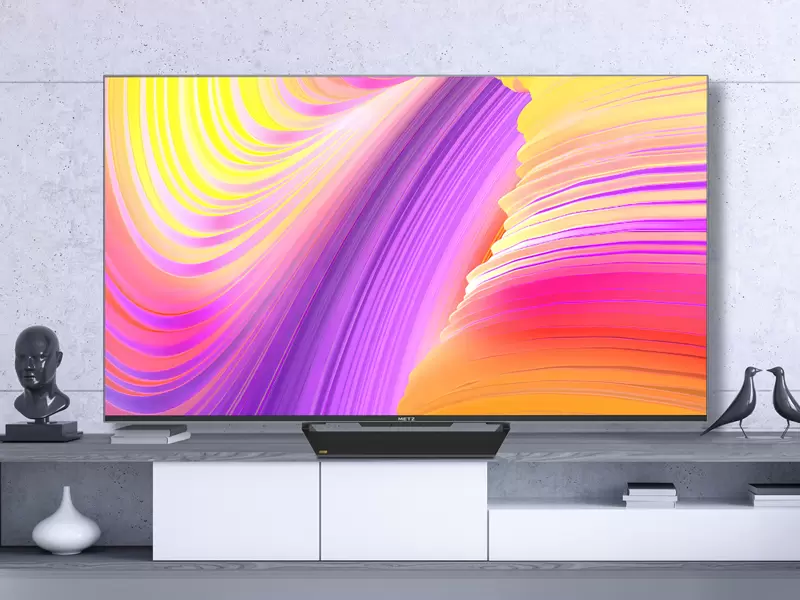
Many modern 4K sets, including models sold under the METZ umbrella, highlight support for HDR formats and cinematic-oriented picture options in their product positioning and materials.
From a content strategy angle, Filmmaker Mode is a perfect “mid-funnel” topic because it answers a very real buyer question:
“How do I make my new TV look like cinema without becoming a calibration nerd?”
Takeaway
Filmmaker Mode is popular for a simple reason: it removes the most common “TV look” problems—motion smoothing, over-sharpening, and heavy processing—so movies and dramas feel more cinematic with one switch.
If you’re building a Mini LED blog cluster, this is a strong pillar because it connects features to real user experience in a non-technical way—and it naturally leads into your next topics like HDR tone mapping, Dolby Vision IQ, and local dimming behavior.
Source: